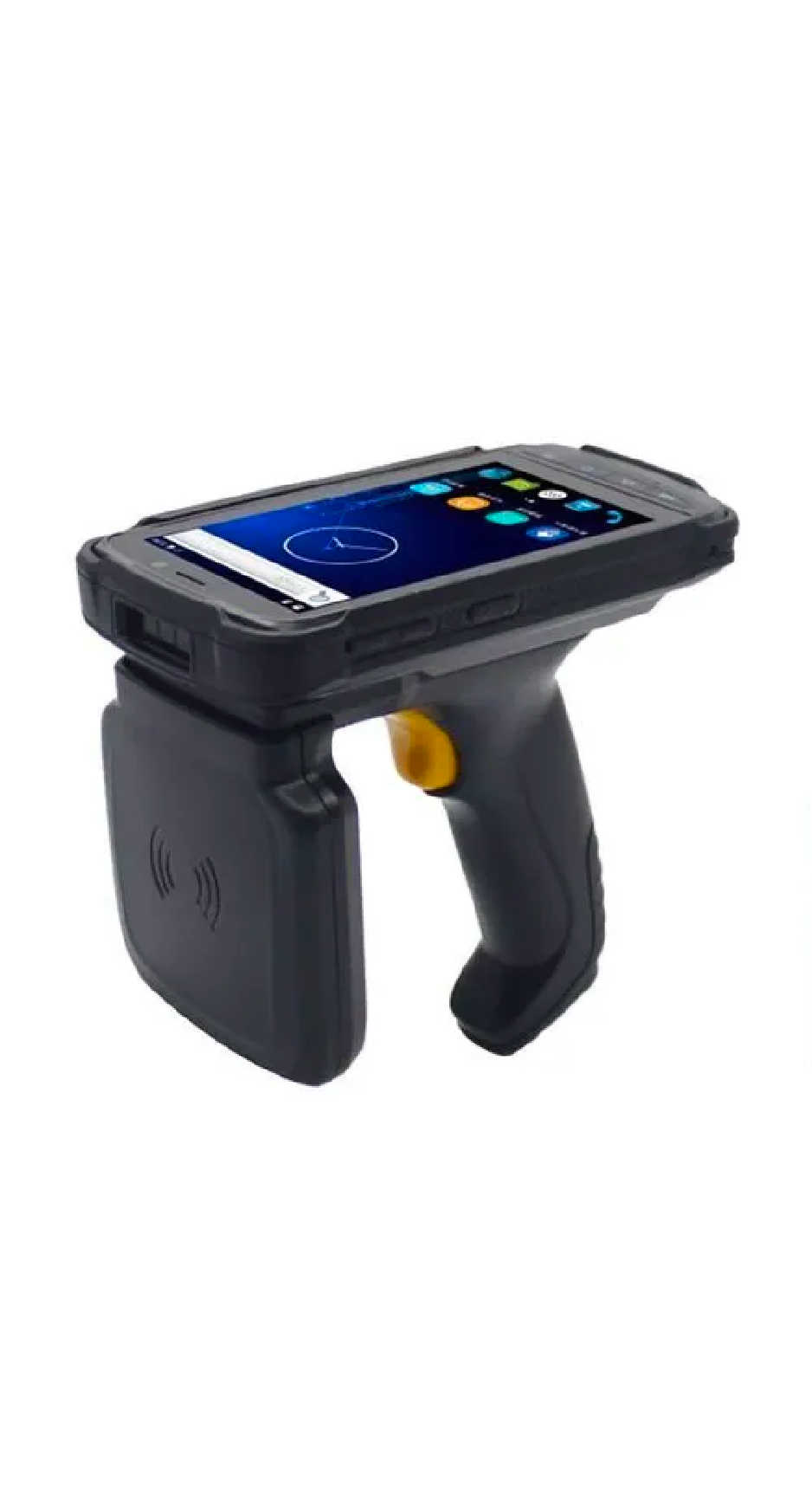
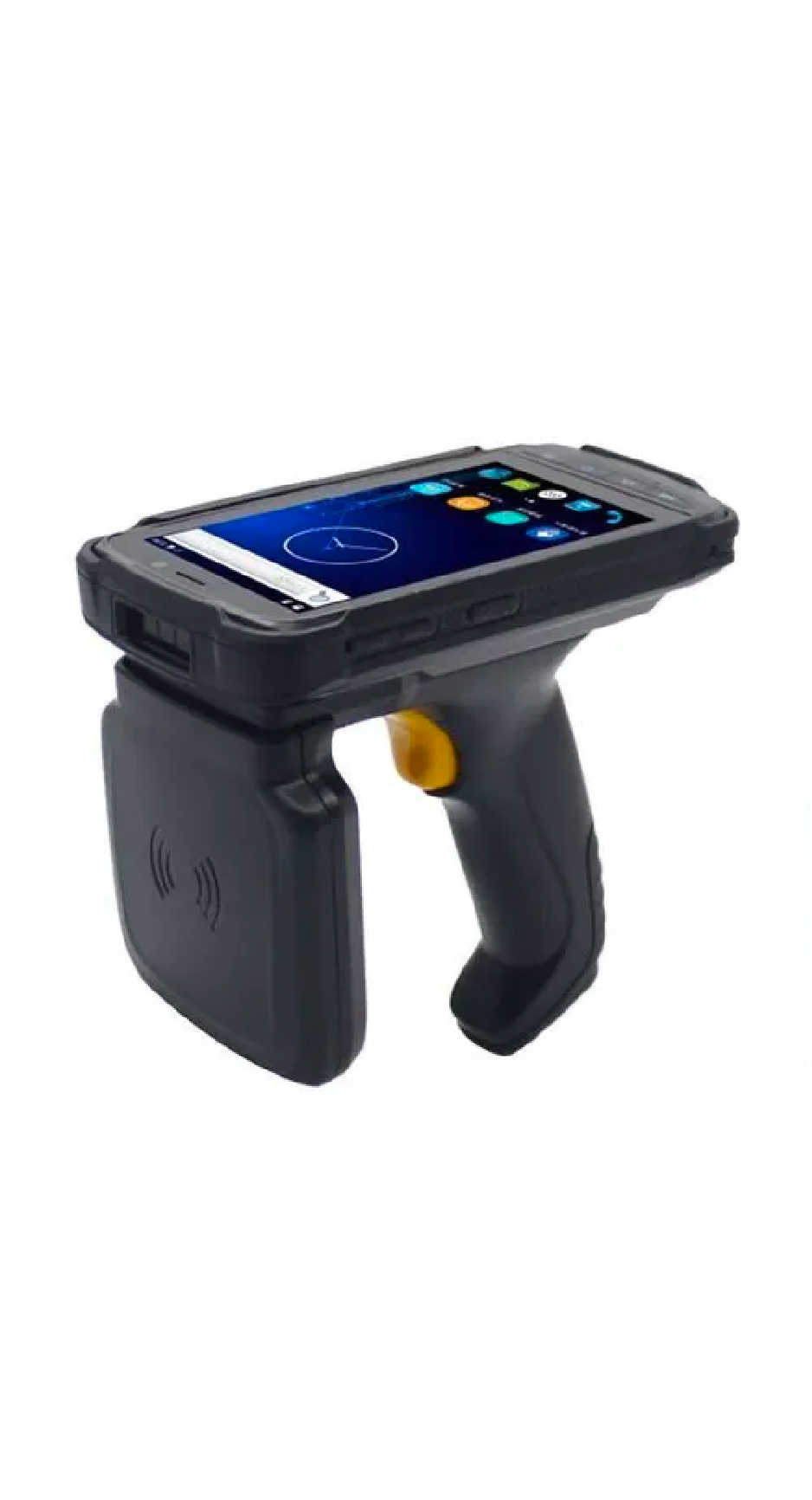
This article describes common problems you may encounter using the Newland MT90 RFID reader and helps you to resolve them.
The possible issues are
• Newland MT90 device is not getting ON / OFF
• Newland MT90 device is connected with other application
• Newland MT90 device is connected to another device
• RFID Tags are not getting read in TagMatiks Wedge application
I. Turn On the Newland MT90 Reader
Hold down the Power key on the right side of the terminal until the device vibrates
II. Turn Off the Newland MT90 Reader
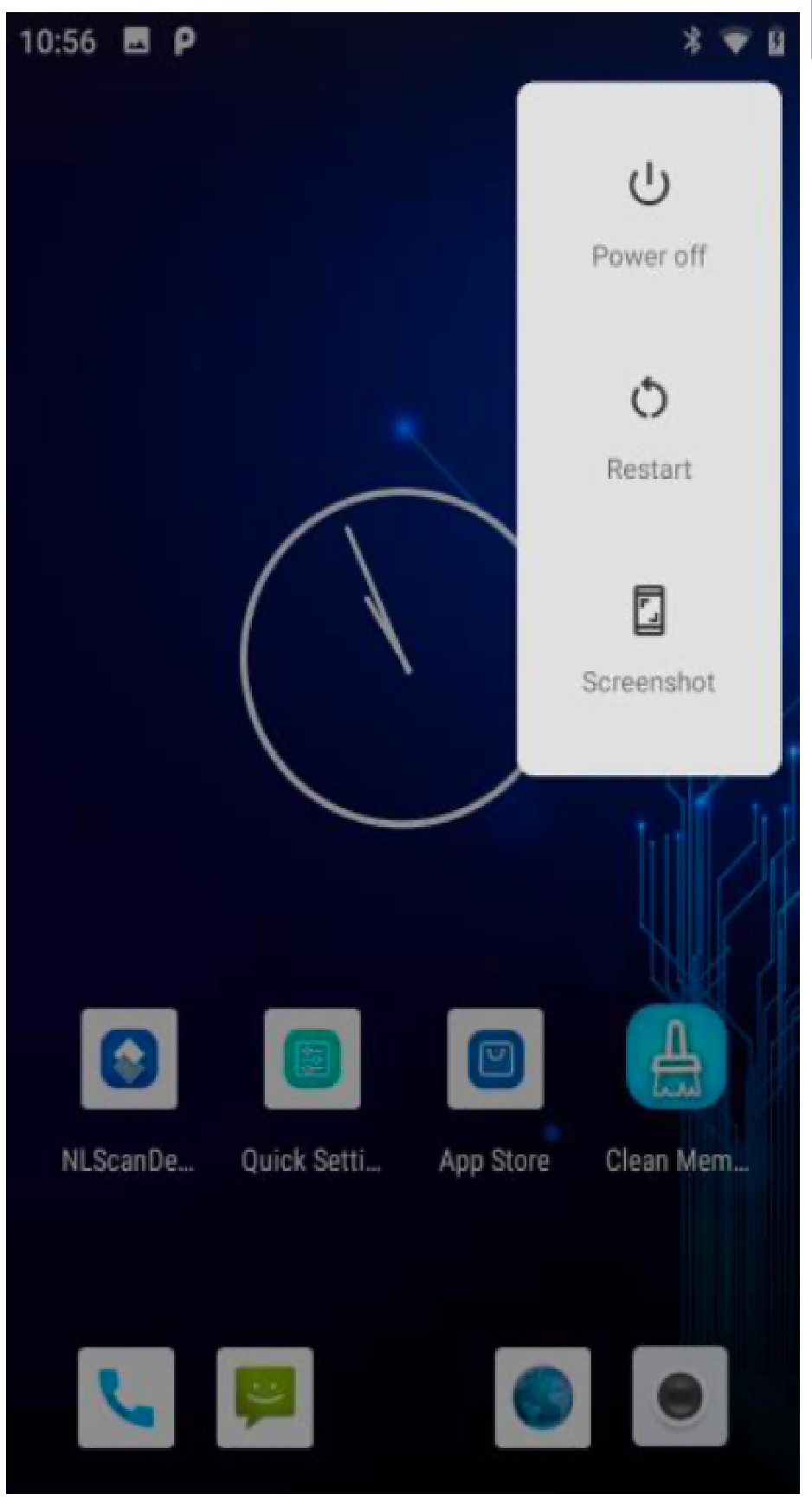
1. Hold down the Power key on the right side of the terminal until the window display pops up.
2. Tap “Power Off” to turn off the MT90 Reader.
1.Open the TagMatiks Wedge Application and Login into it.
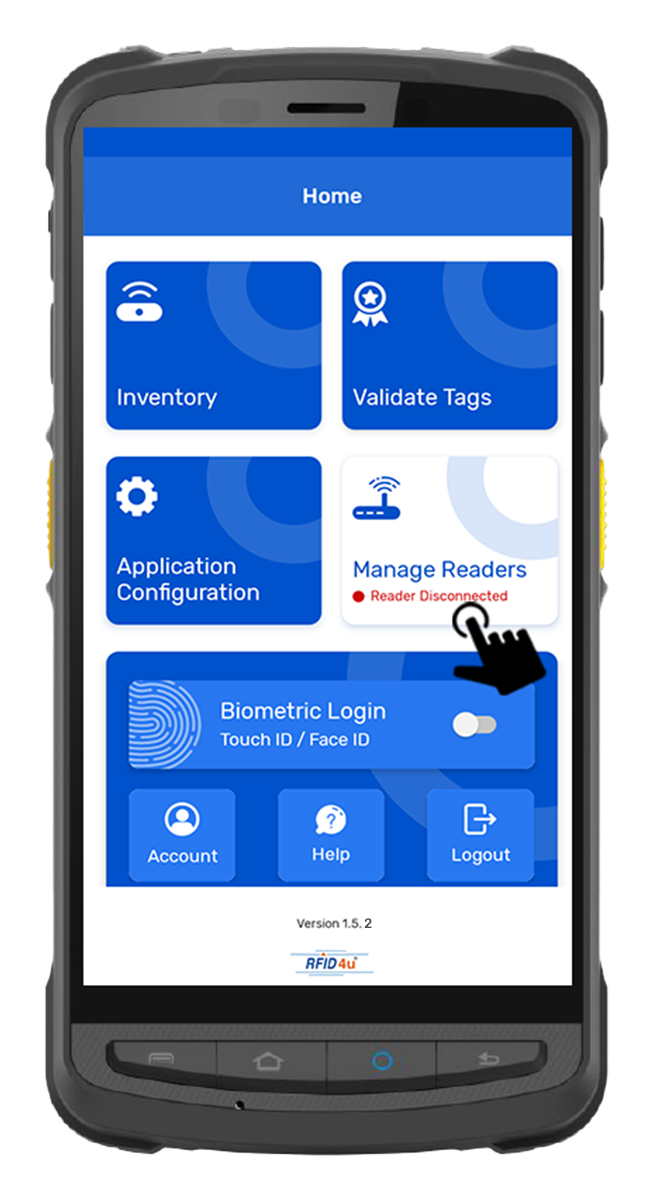
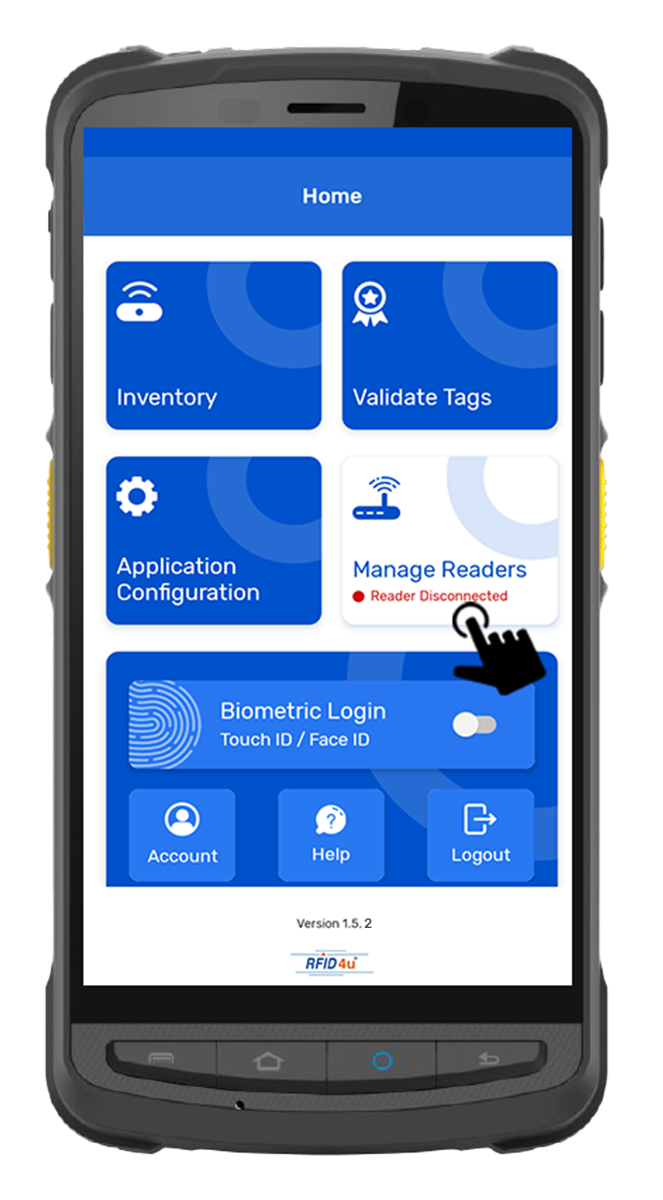
2. Click on Manage readers from the home page of Application. As shown in Fig 0.1.
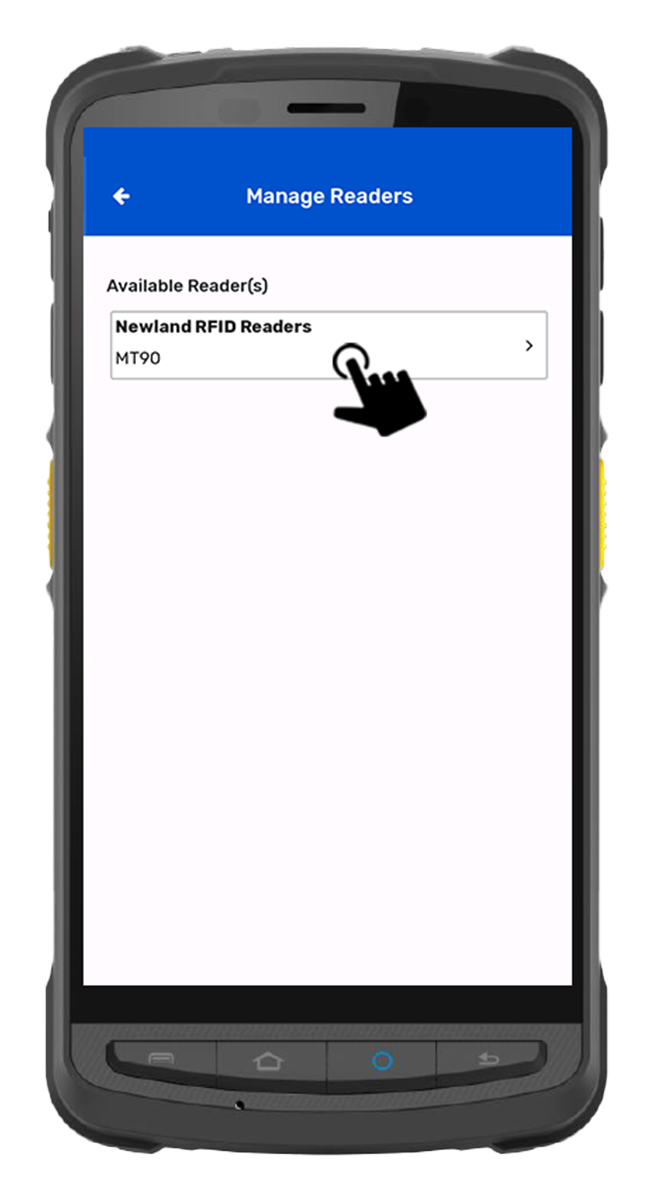
3.Click on “NewLand RFID Reader” from the Manage Reader page. As shown in Fig 0.2.
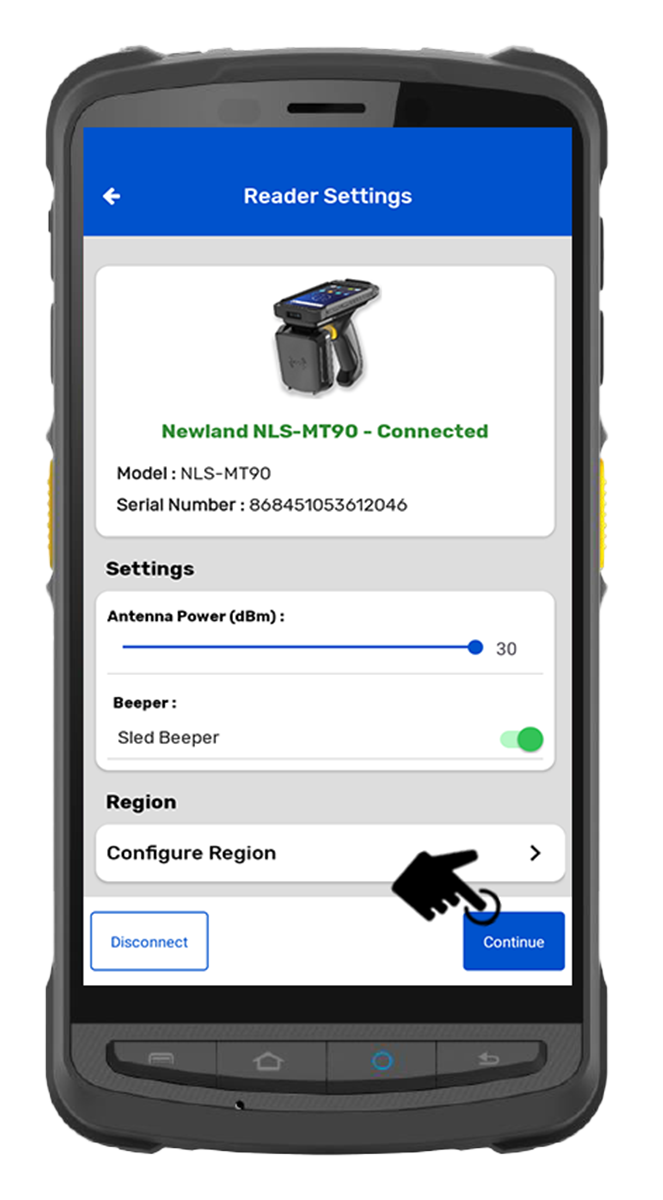
4.Then, you will redirect to Reader Settings Page,
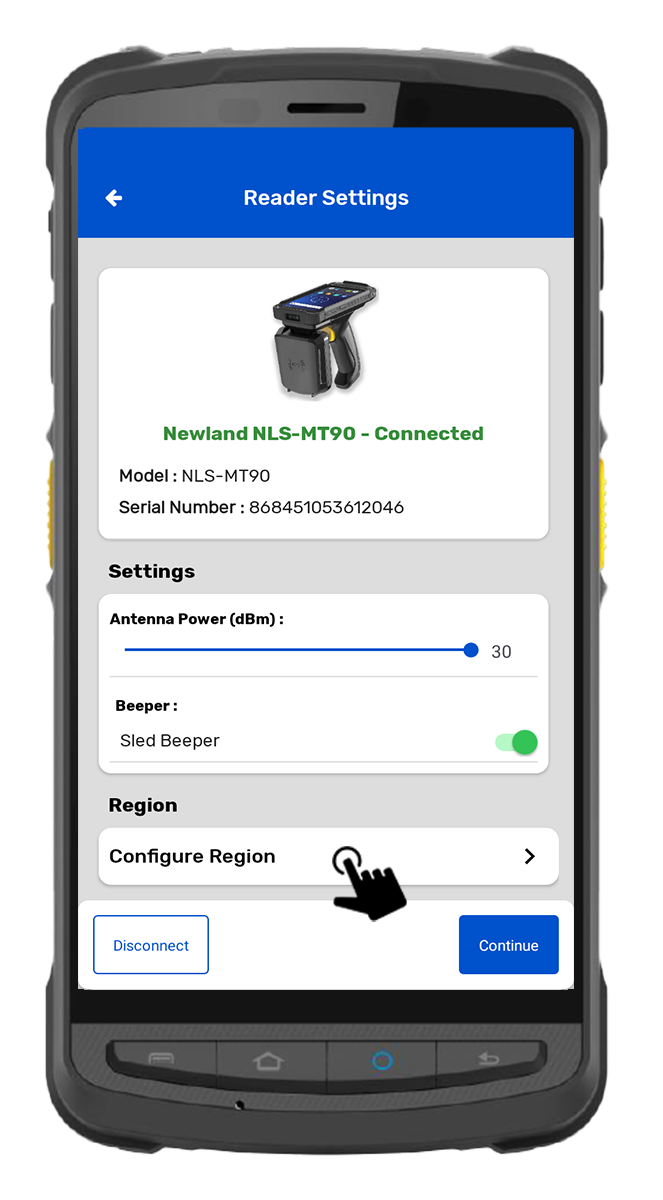
5.Click on the Configure Region button to set the region. As shown in Fig 0.4.
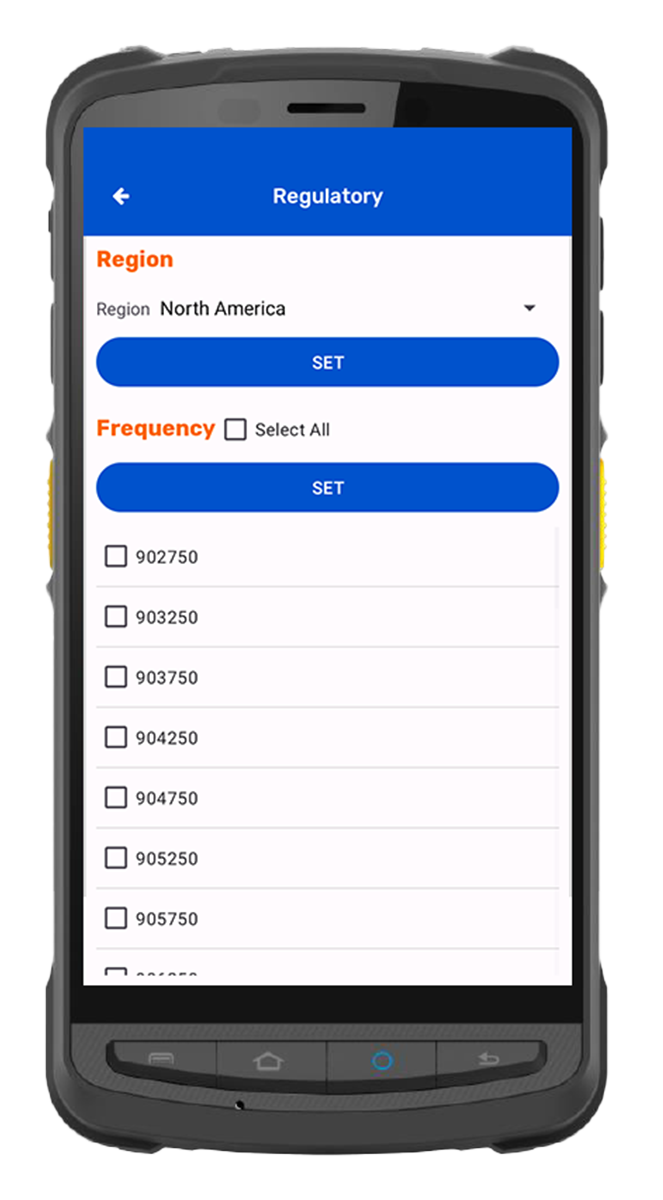
6.Select the region from the list and Frequency from their list and Click set to configure the region.As shown in Fig 0.5.
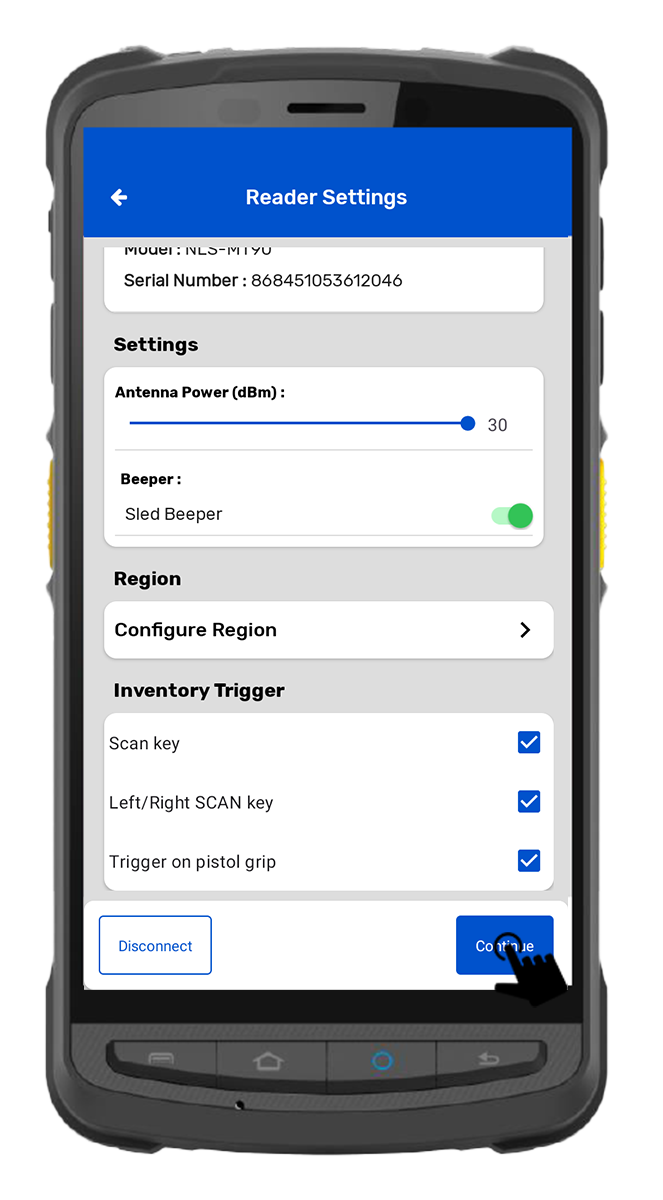
7.The reader setting has the following Menu option. As shown in Fig 0.6.
• Antenna - Adjusts the range of the RFID handheld or sled.
• Beeper Sound - Sound On and Off - When Reading or Scanning the Tags
• Inventory Trigger – For triggering the inventory
If the Newland MT90 device is “ON” but couldn’t connect to the Android device. Then there is a possibility that the Newland MT90 device is already paired & connected to another device. To check the same, please follow the following steps.
I. Newland MT90 device LED status check
1. Check the status of the “Bluetooth Pairing” LED light.
2. If it is solid blue, it means the Newland MT90 device is already paired with another device; as shown in below image:
3. If “Bluetooth Pairing” LED light is flashing Blue – this shows that Newland MT90 device is now in discoverable mode and ready to pair with a nearby Android device.
II. On TagMatiks Wedge Application: Newland MT90 Reader Check.
1. Open TagMatiks Wedge Application, LogIn into it.
NOTE: Make sure the Android device’s Bluetooth is on.
You can check the reader connection status in the Manage Reader module. If it is not connected, a “Reader Disconnected” status will be shown, as shown in Fig. 0.7.
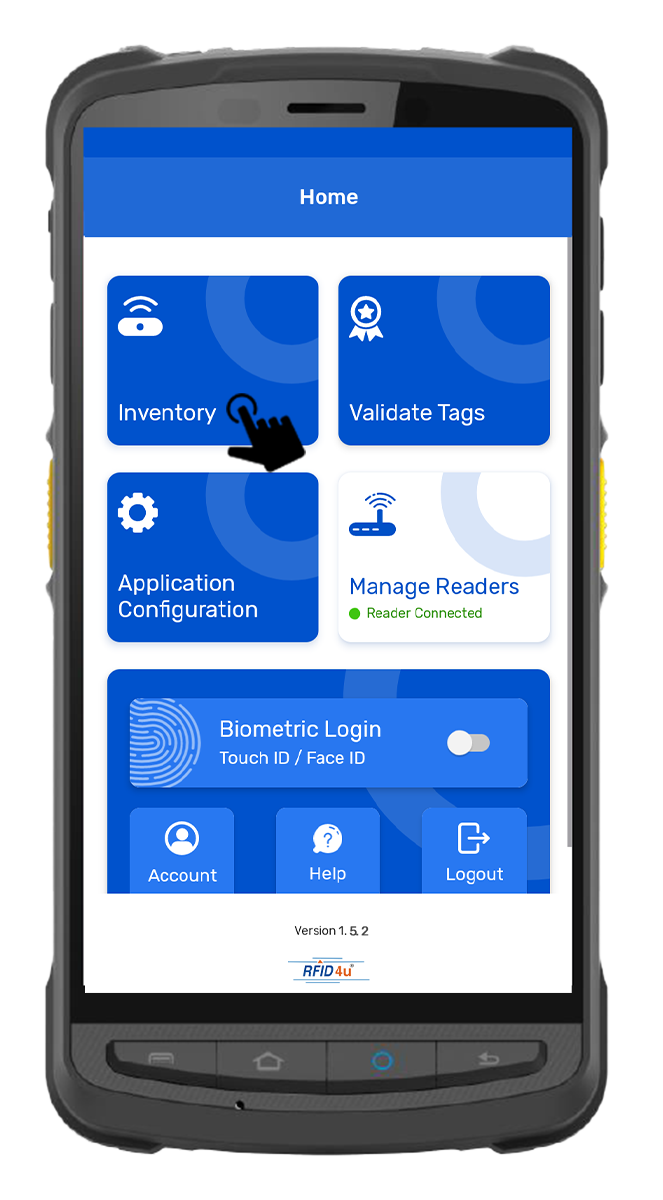
1. To read the RFID Tags, Click on the Inventory option from the home page of the Application. As shown in Fig 0.8.
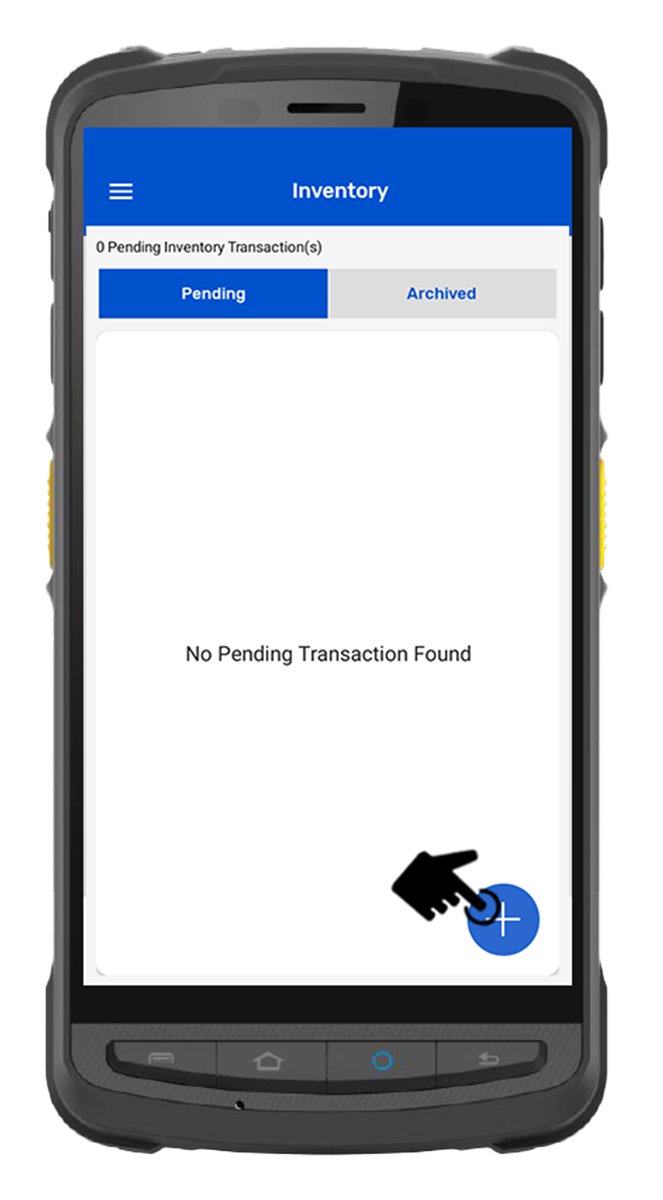
2. Then a new window will open, named: “Inventory.”Create a new Inventory transaction, by pressing the “+” button on the right bottom of the application.As shown in Fig 0.9.
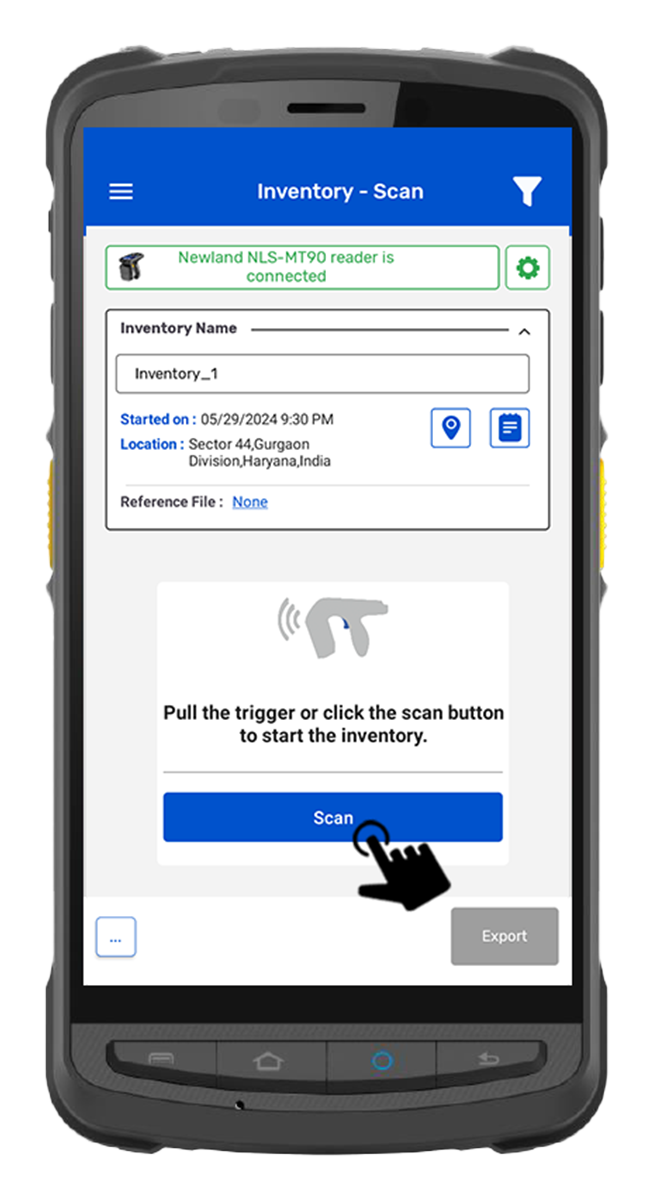
3. Click on the Scan Button option , As shown in Fig 1.0.
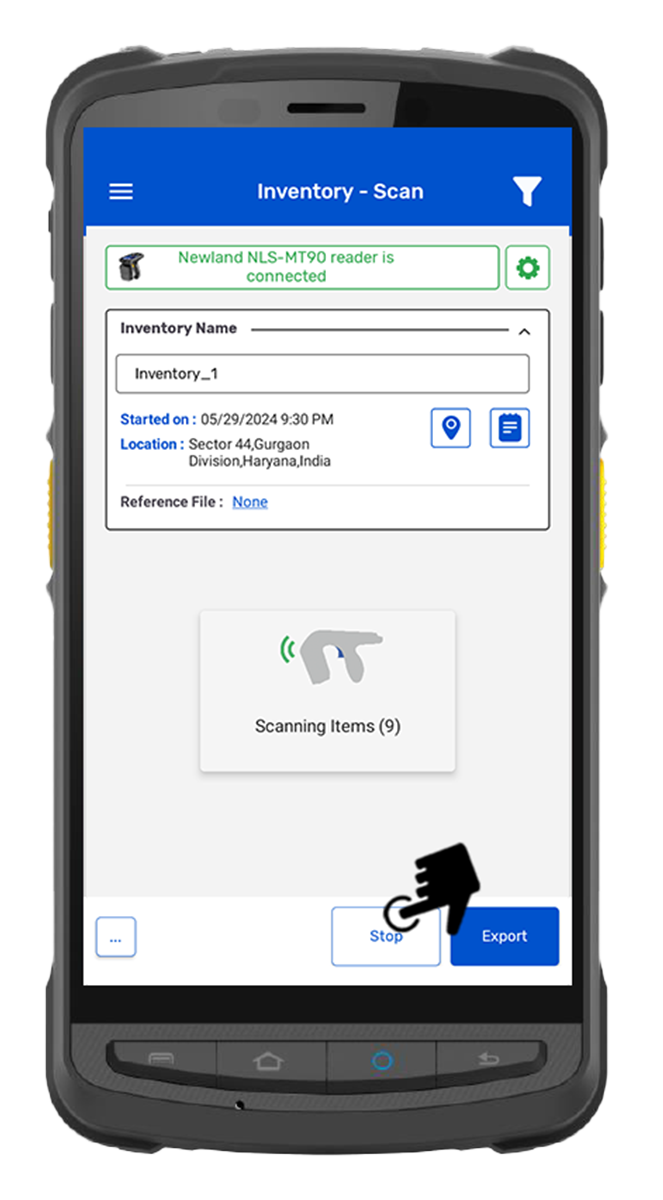
4. This means the reader is in a polling state and the reader is reading the tags. Same can be seen in the application window. Refer below image: Fig 1.1.
6. Once you press the “Stop” button (on the right bottom of the application); reader Newland MT90 reader will stop reading the tags.
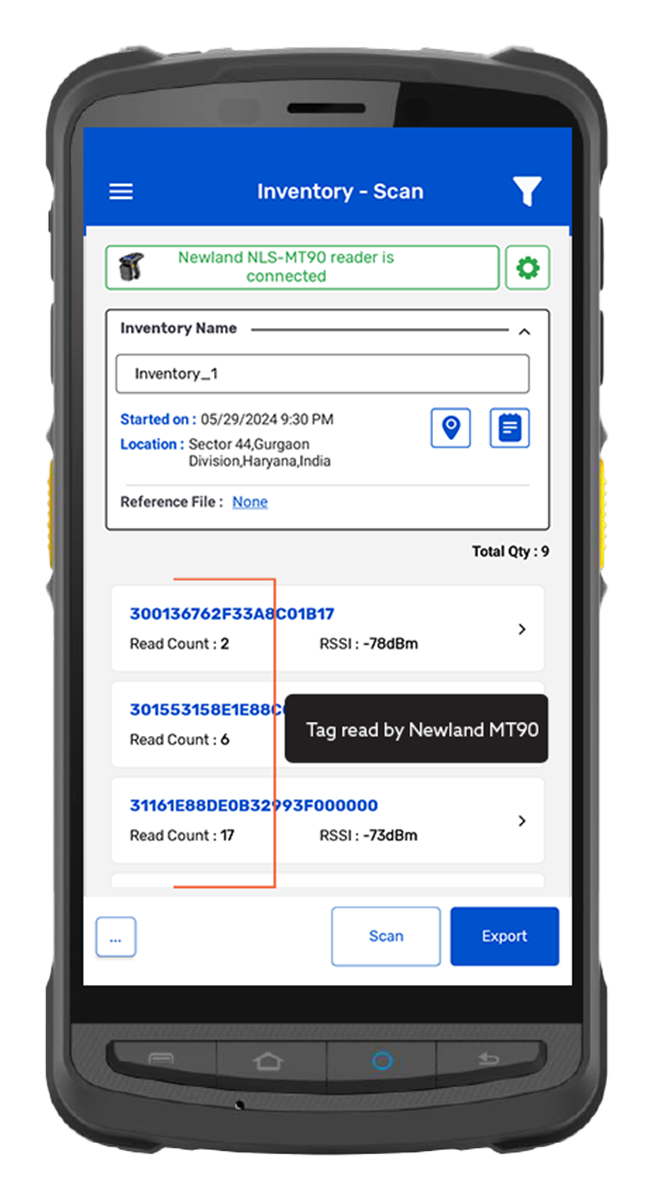
7. As a result, the read tags will populate on the application window, as shown in image below Fig 1.2.