This article describes common problems you may encounter using ATID X6 device and helps to resolve them in TagMatiks Wedge.
The Possible Issues are:
If the Region is not configured with the reader, we need to configure the reader for scanning the tags using the ATID X6 Reader in our application.
By following the below steps we can configure the region for ATID X6 Reader using TagMatiks Wedge.
1. Open TagMatiks Wedge and login onto it.
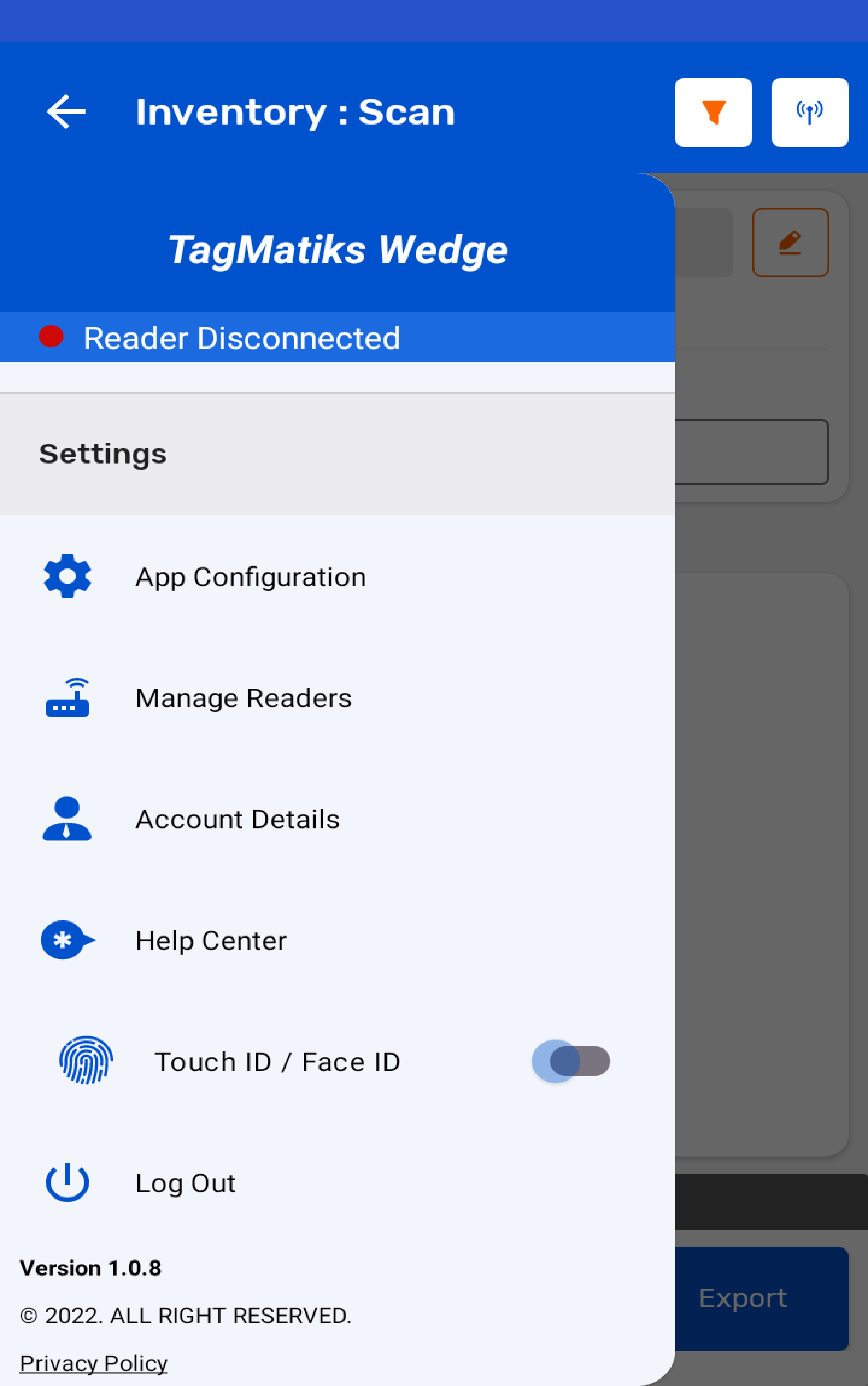
2. On top left of the application, you can check the reader’s connection status as shown in the below image
3. As no RFID reader is connected with the application, then the status is shows as “Reader Disconnected”.
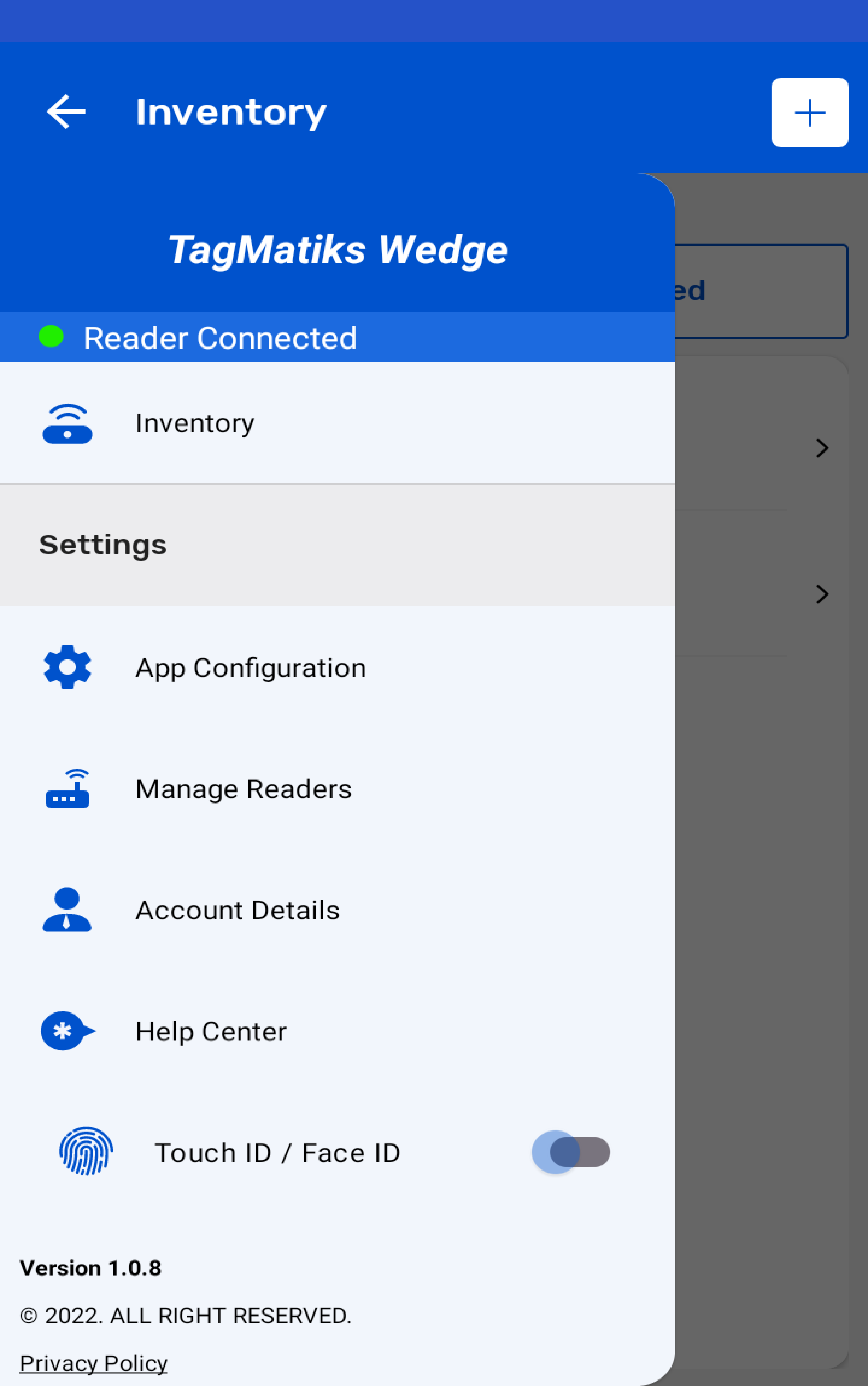
4. To make the region configuration for ATID X6 Reader, press the “manage reader” button - on the left-hand side of the application.
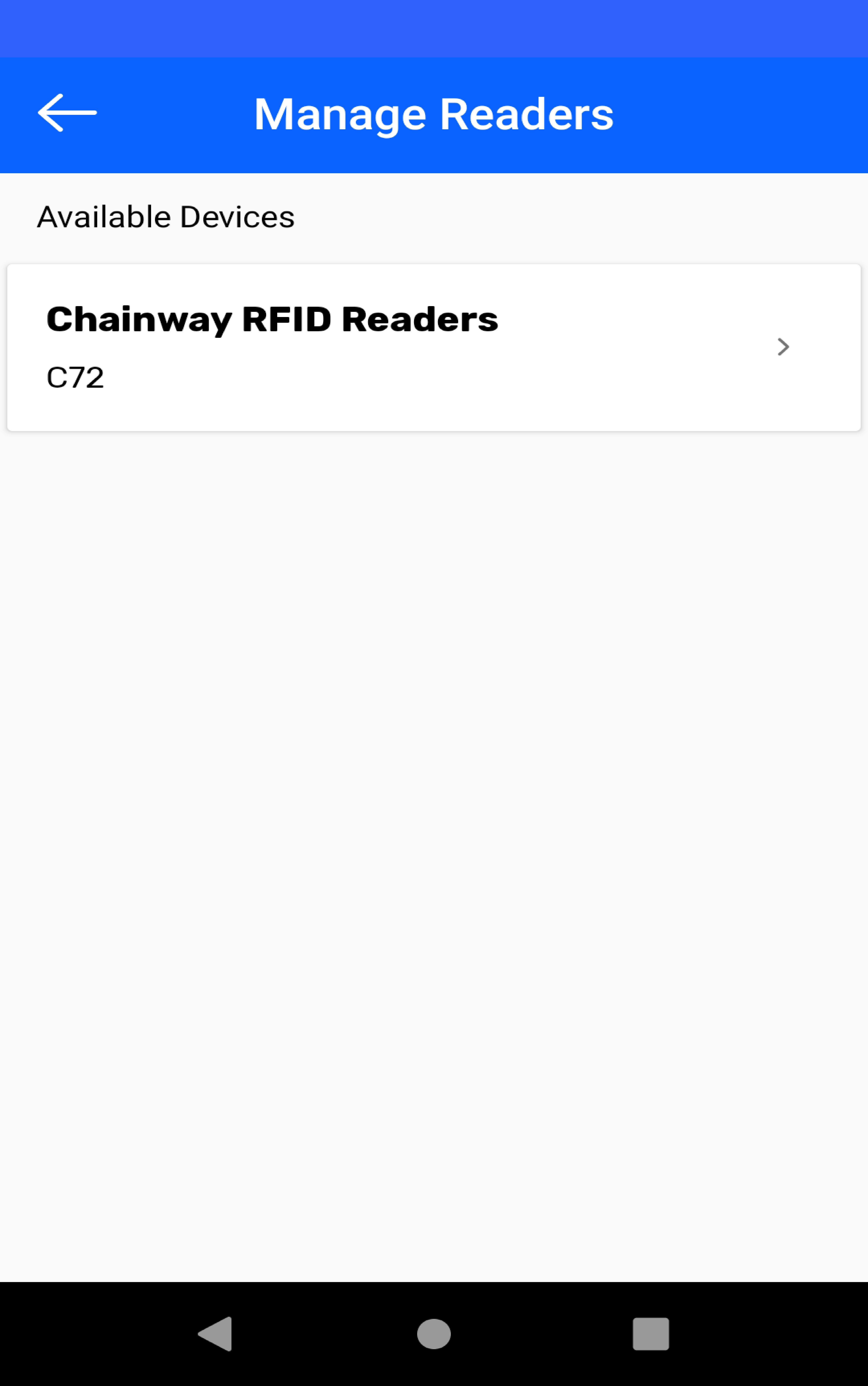
5. Then the device name will appear in the reader list page
6. Click Device name and goto the settings page
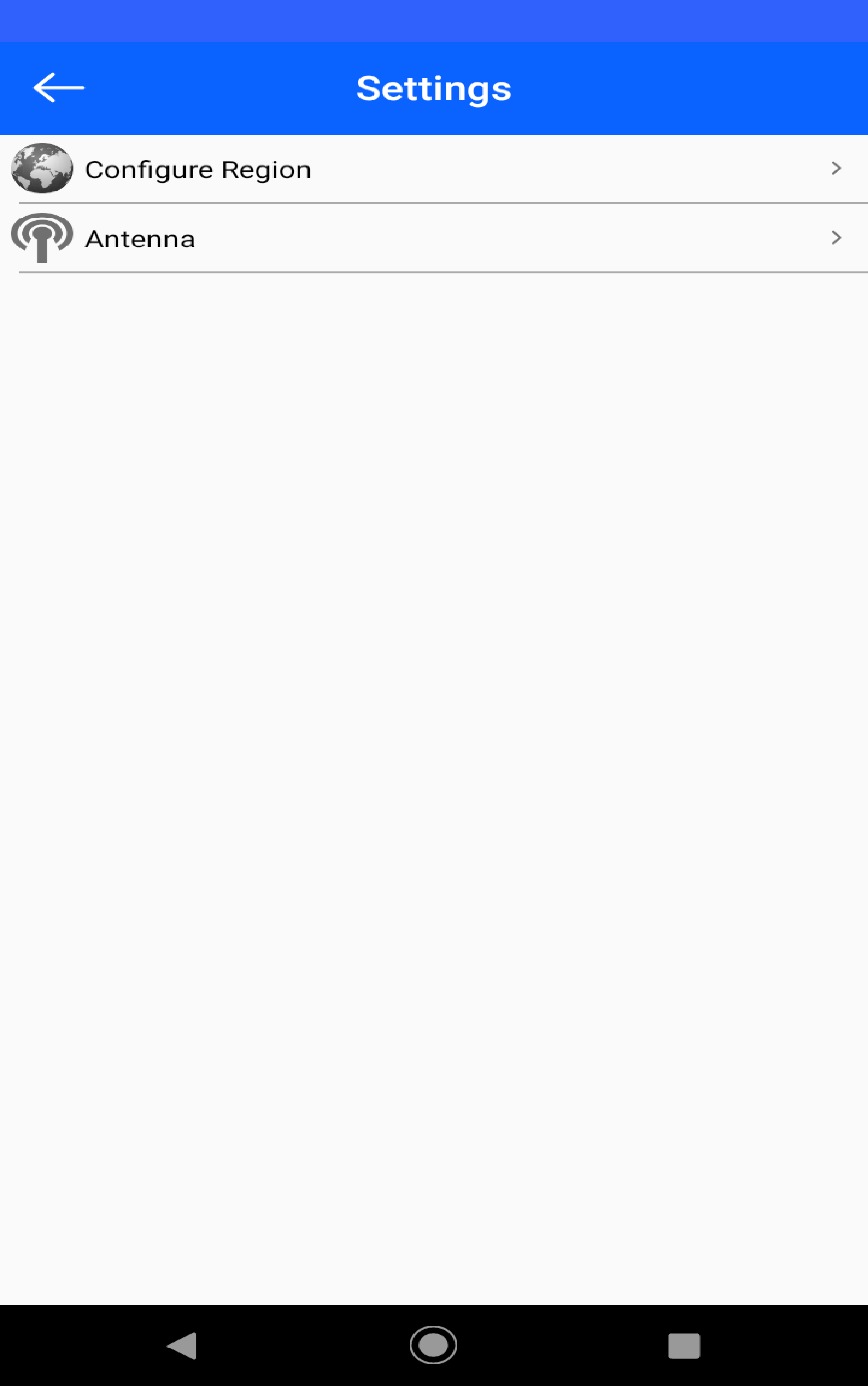
7. Click Configure Region from the Reader Settings Menu
8. Select the Region from their list and Set the Frequency and then click back button to save the reader region.
9. Once configured in the Region, the reader automatically connects to the application.
If the Bluetooth is turned off, ATID X6 Reader will not connect with our applications. So we need to turn on the Bluetooth in device settings. Open the application after turning oN the Bluetooth in device settings, the reader should automatically connect with TagMatiks Wedge. We can find the reader connection status by following the below steps.
1. Open TagMatiks Wedge and login onto it.
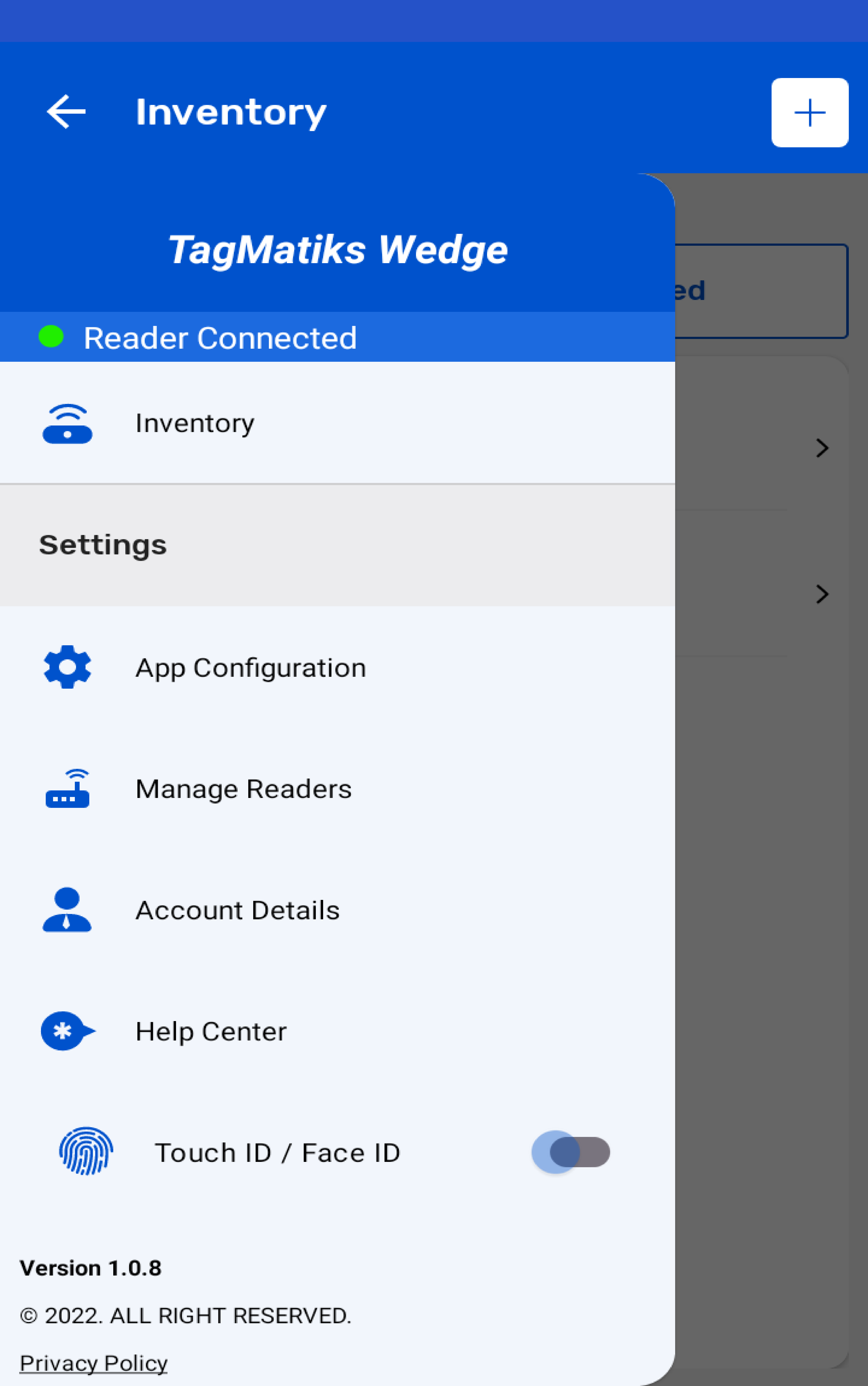
2. Click the Manage Reader icon from the Side Menu.
3. We can view the reader connection status as shown in the below image.
If the reader is already connected with another application, the system does not allow to pair the reader with our TagMatiks Wedge Application. We need to close or terminate the connected application.
Open TagMatiks Wedge application and login into it after disconnecting the reader from other applications, Reader should automatically connect with the application.
1. To read the RFID tags from ATID X6 reader; press "Inventory" button - on the left-hand side of TagMatiks Wedge.
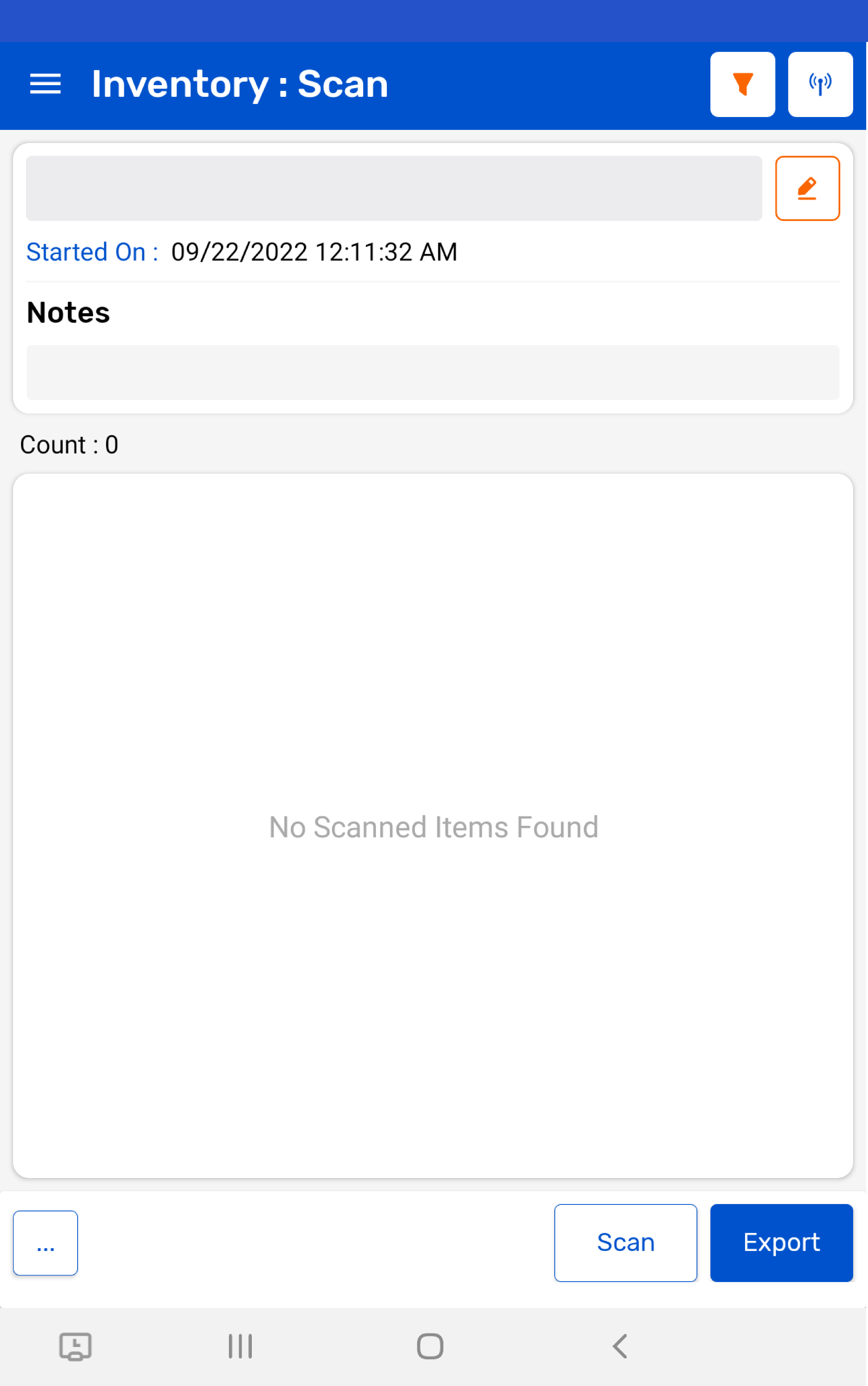
2. Then a new window will open, named:"Inventory"
3. Create a new Inventory transaction, by pressing the "+" button on the right bottom of the application.
4. Press the "Scan" button(on the right bottom of the application) for reading the RFID tags.
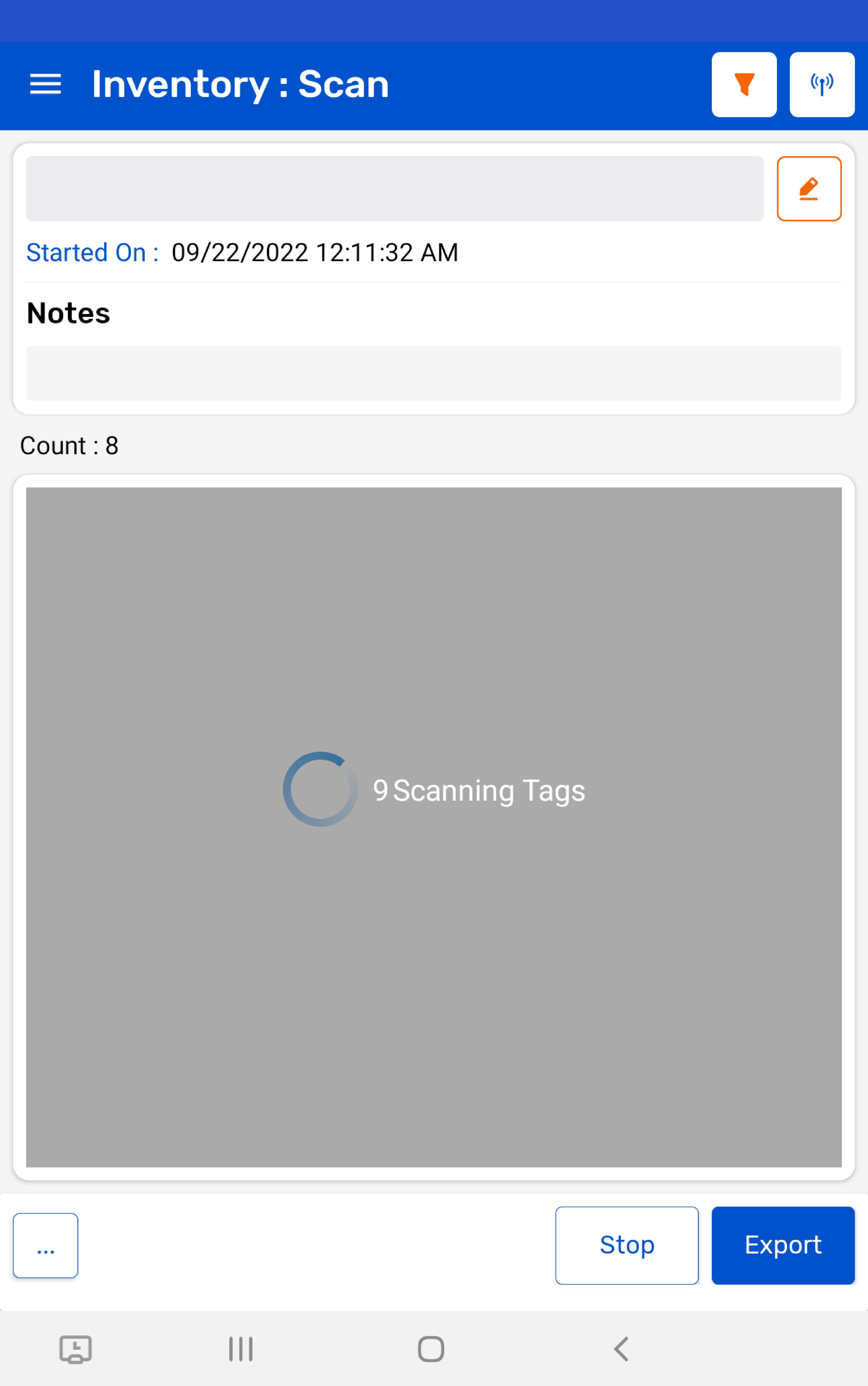
5. This means the ATID X6 Reader is in polling state and reading the tags.
6. Same can be seen in the application window. Refer to the image below:
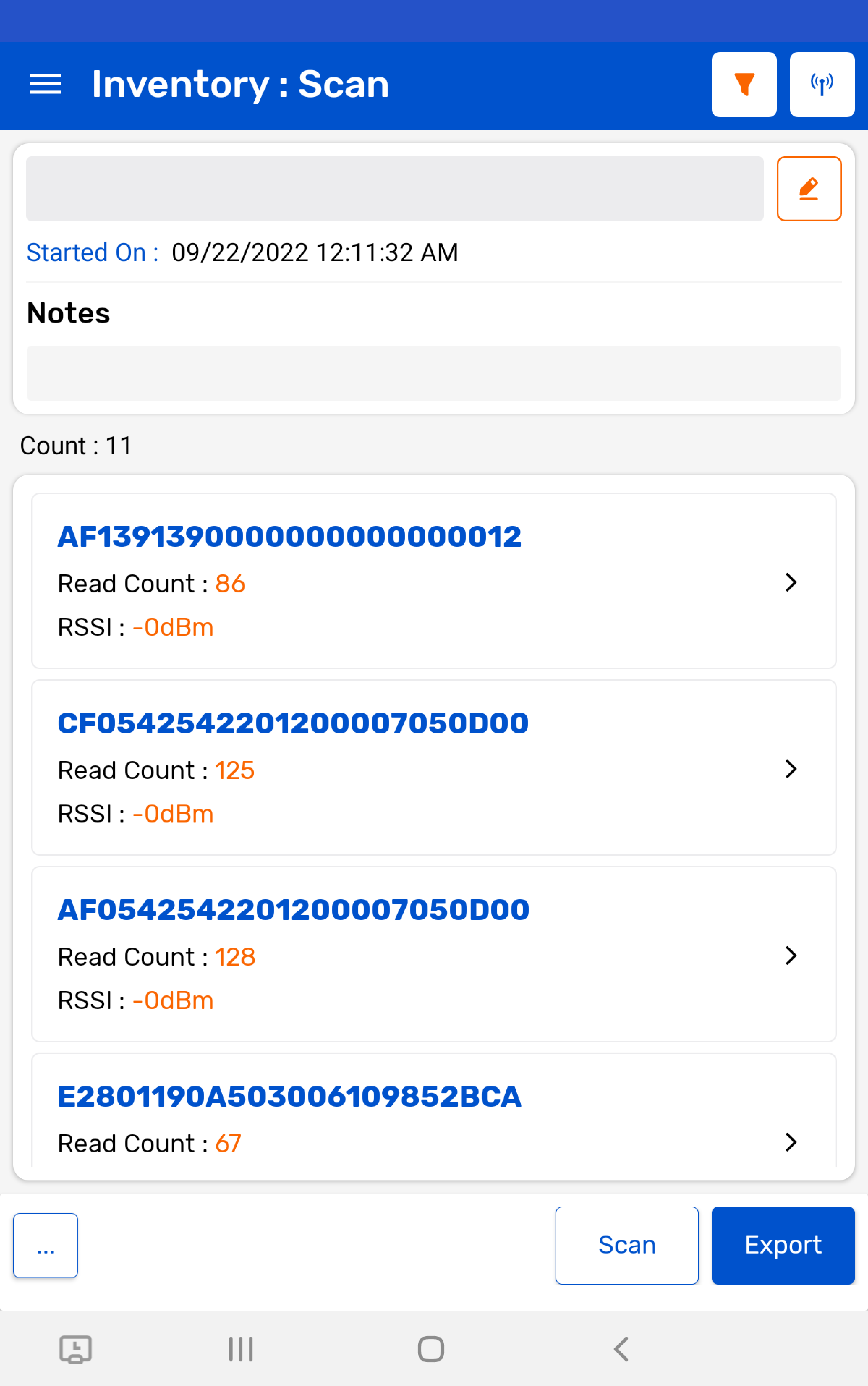
7. Once you press the "Stop" button (on the right bottom of the application), the ATID X6 reader will stop reading the tags.
8. As a result, the read tags will populate on the application window, as shown in the image below.
NOTE: The reading start / stop can also be controlled with the “Trigger” button of the ATID X6 Sled device.